If you install or update the Library App on a mobile device, you may see the Guest profile icon in the upper right corner of the home screen.
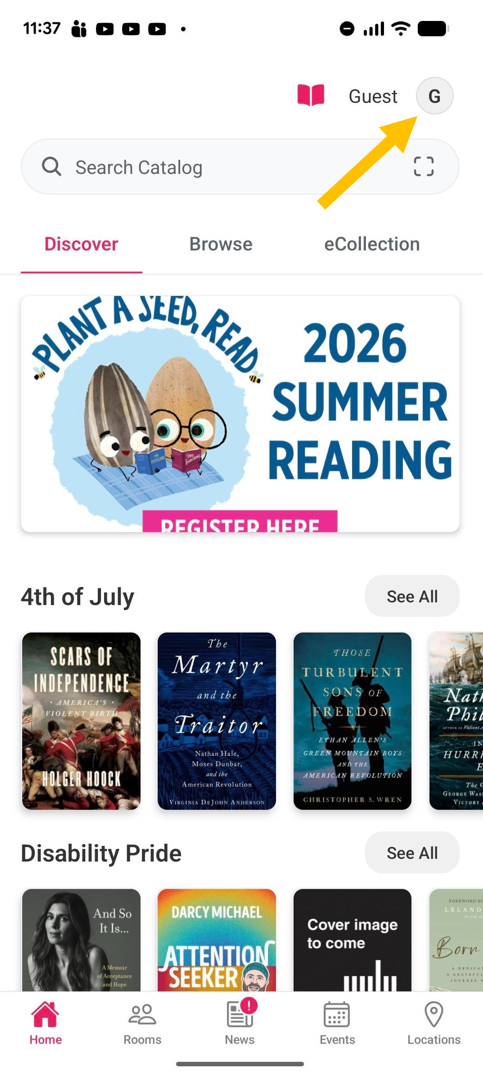
This means you need to add a Library Account to the app before you can place holds, create lists, or do anything related to Library collections.
To add a Library Account, you need your library card number/username, and password / PIN.
- If you haven't previously set a username, the default username is your name: FirstMiddle.Last or First.Last - learn more.
- If you don't remember your password / PIN, you can reset it.
- If you get an error when adding your account, verify your login information by signing in to your account through the Library catalog.
Get Started - Tap the GUEST Profile Icon to Add Your Account
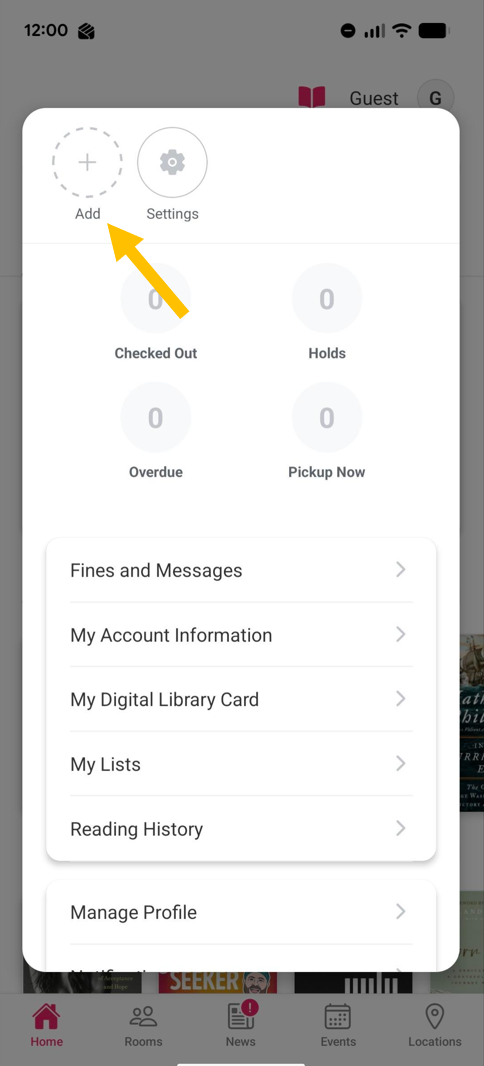
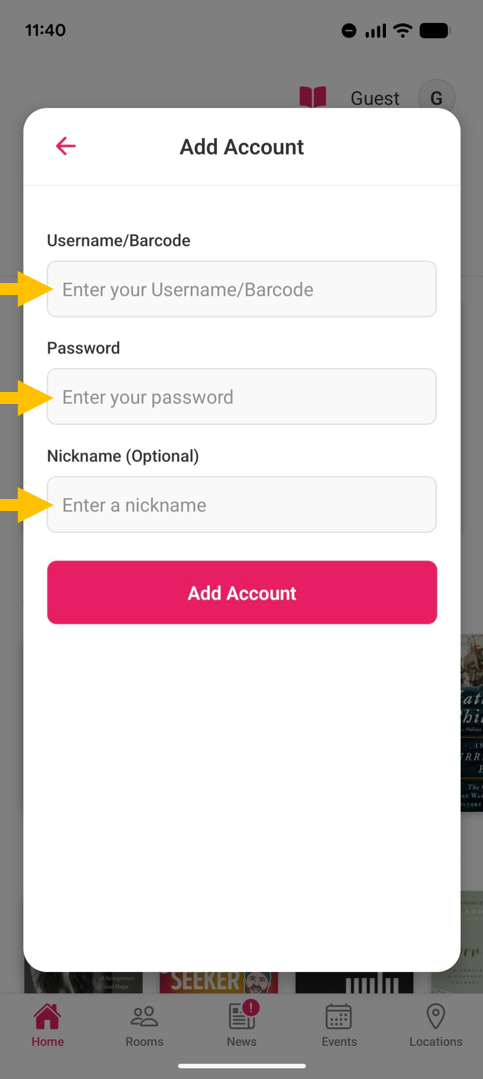
Login: Add Your Library Account
- Enter your library card number / barcode or username.
- Enter you Library Account password / PIN.
- Choose a short nickname for your Library Account (this is just for the app - try initials or abbreviations).
- Tap Add Account.
Join
If you don't have a library card tap the Register for a new Library Card link, which takes you to the online library card form.
Pro Tip: Use a Note Taking App to Help You Login
One of the most common causes for login errors is mistyping your username or card number or password / PIN. This can cause an authentication error even when you know you have the correct login information.
If you have a note taking app on your device, we suggest typing your login information into the notes app first.
Confirm the login information you typed in the notes app matches your username / card number and password / PIN exactly.
Then copy and paste your login information from the notes app to the "Add Account" form in the Library App.
Open Your Library Acount
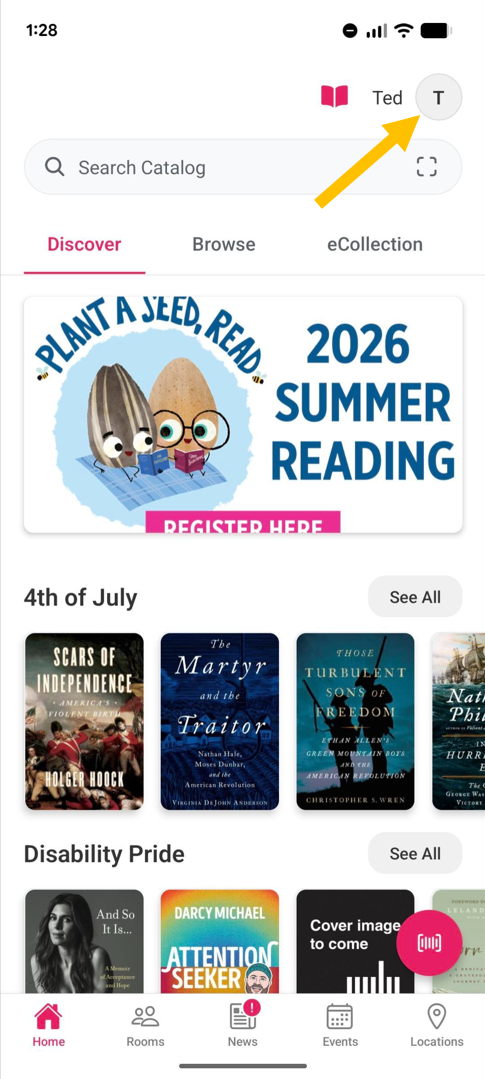
From the Home Screen
- Tap on your account icon to open your account panel.
View Your Library Account Information
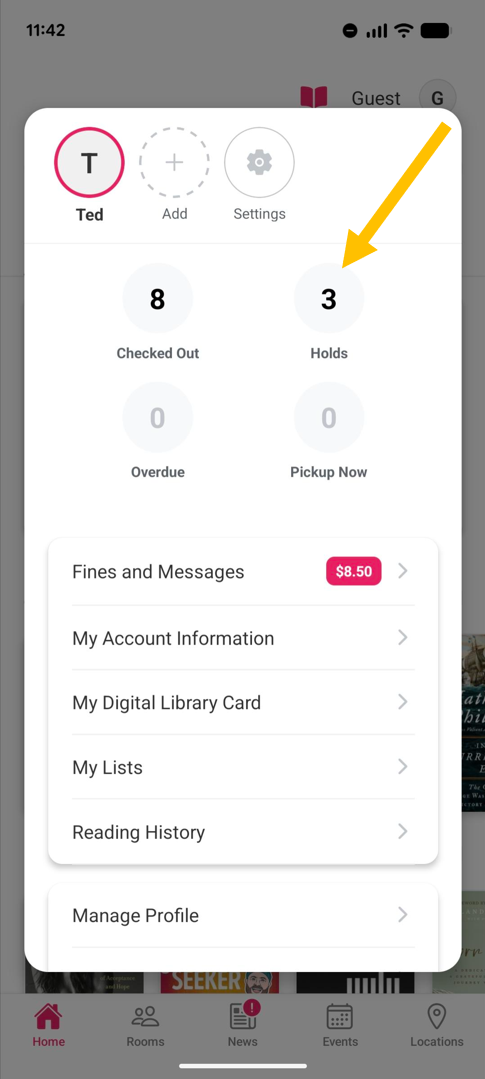
From your Account panel:
- Select My Account Information from the menu under the Checked Out / Holds / Overdue / Pickup Now display.
Edit App Profile Settings
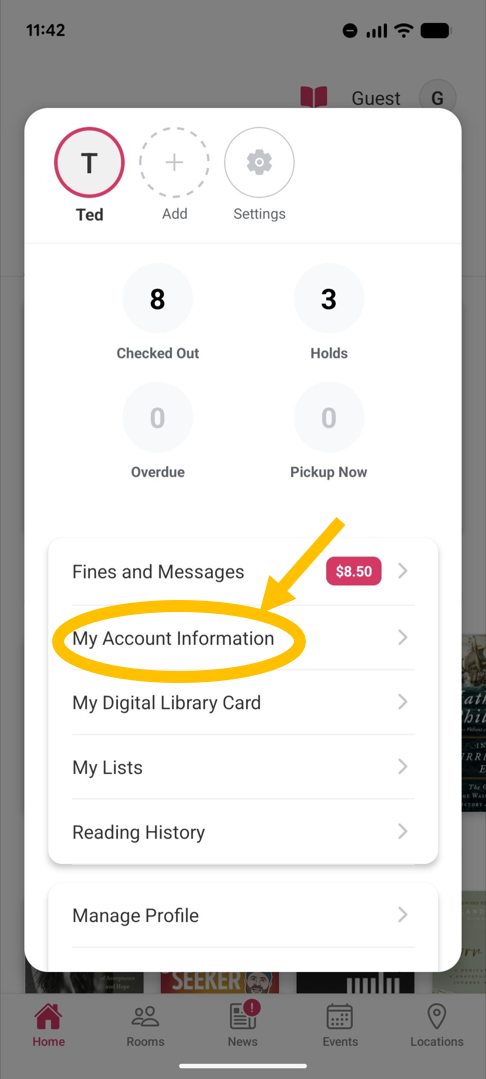
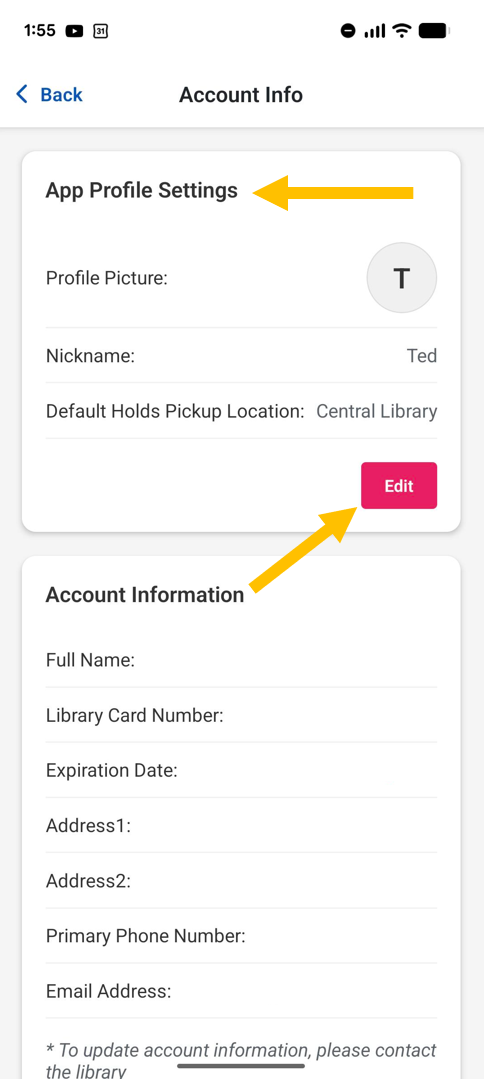
To Open App Profile Settings
- Tap the My Account Information Button in your Library Account Panel
In the App Profile Settings Screen
Tap EDIT to:
- Change your nickname
- Set default hold pickup location
- Set a profile picture from the images on your mobile device
Tap SAVE when done.
Important Note: About the Account Information Screen
Your account information on the lower part of this screen is for reference only. To edit, log into your account on a web browser or speak to Library staff.
Add Multiple Library Accounts
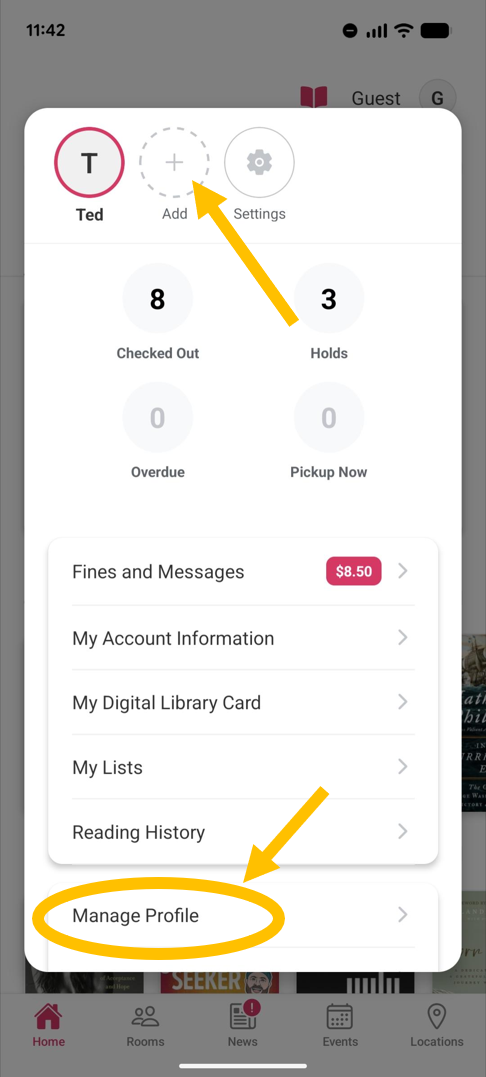
Two Ways to Add More Library Cards to Your App
- Tap on your account icon to open your account panel.
- Use the + symbol to open the Add Library Account screen, and log in with additional accounts.
- Use the Manage Profile button to add, move or delete the Library Accounts managed on your app.
Manage Multiple Library Accounts
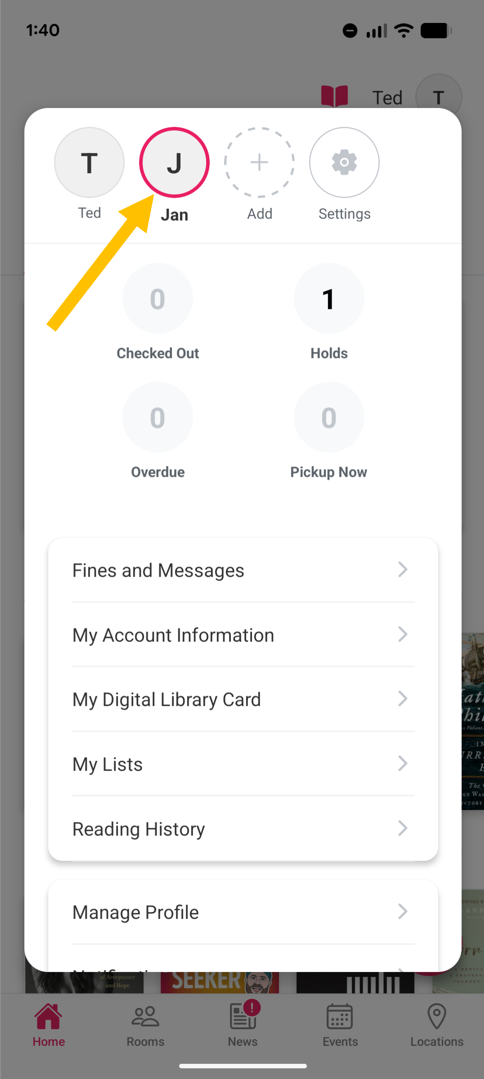
Switch Between Accounts
- Tap on your account icon to open your account panel.
- Tap Library Account icons to switch between accounts.
Add, Remove & Reorder Accounts in the App
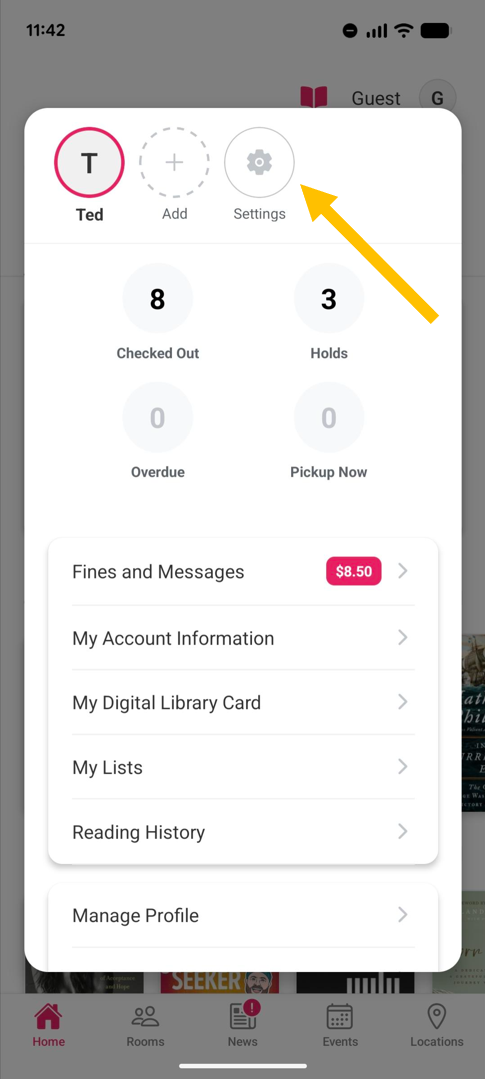
Tap on Your Account Icon to Open Your Account Panel
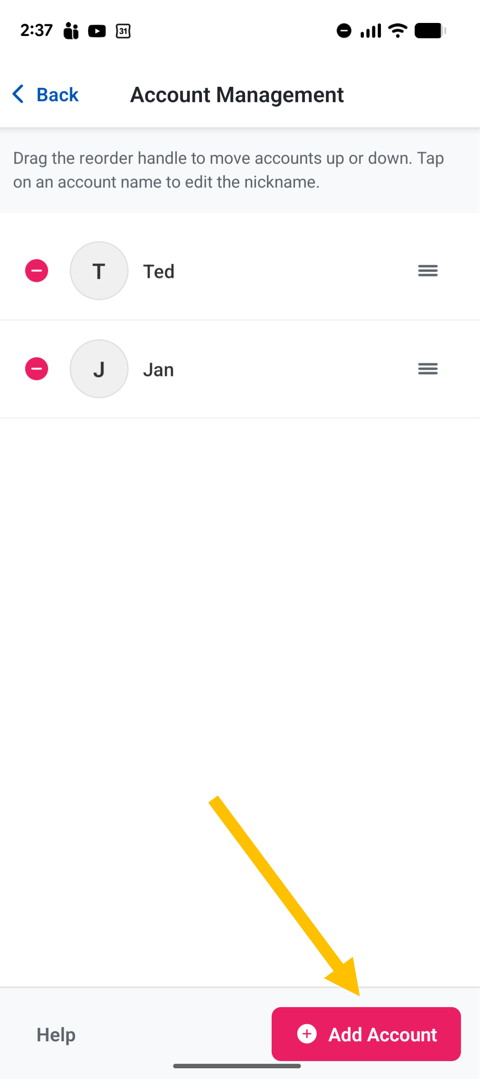
- Use the gear icon or the Manage Profile button to go to the Manage Accounts screen.
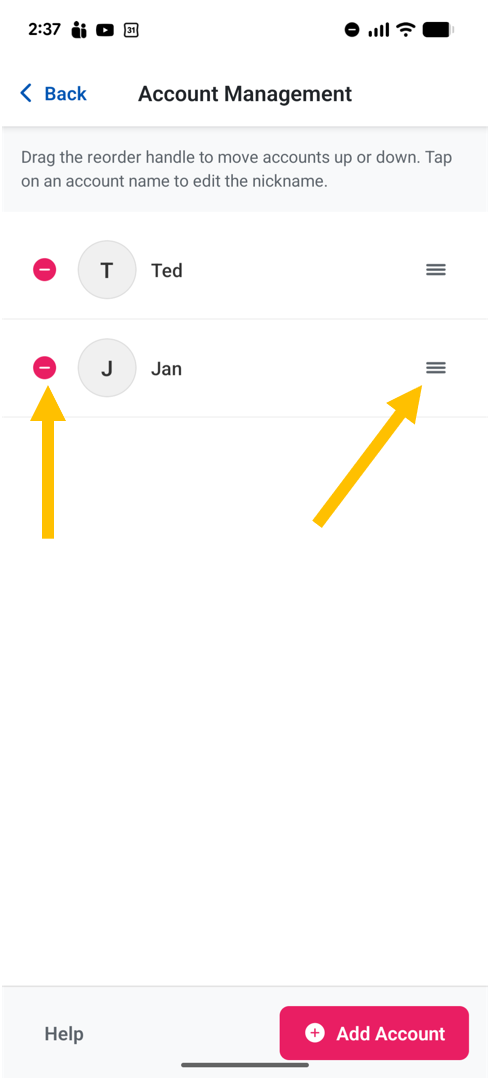
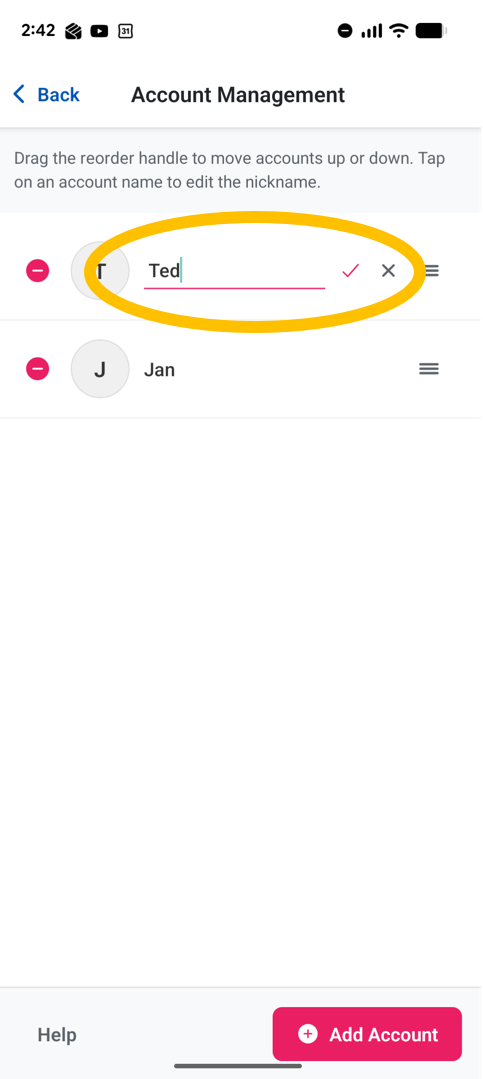
In the Manage Accounts screen
- Tap the account nickname text to edit the nickname.
- Use the delete icon to the left of each Library Account to remove it from the app.
- Use the drag/drop icon to the right of each Library Account to reorder the accounts in the app.
- Use the ADD ACCOUNT button to add additional accounts.
Note: The Manage Accounts screen is only for organizing accounts managed on the app.
Use the Library App Feedback Form to send us questions and comments.
The Library App is a collaboration between the Arlington Public Library and Arlington’s Department of Technology Services.