Encountering issues with the Library App can be frustrating. Here are some recommendations for how to fix some common Library App issues.
- Have you changed your password / PIN recently?
- Did you recently get a new account number?
- Did you forget your password / PIN?
- Are you seeing a message in the App "update your account credentials" or “login credentials are incorrect?”
Then you will need to verify your account information first.
- Is the App frozen?
- Are you seeing a spinning circle icon?
Refer to this section for common causes
Verify Your User Name And Password / PIN
https://libcat.arlingtonva.us/MyAccount/EmailResetPin
Delete Your Account from the App
Is Your App Frozen With A Spinning Circle?
This can sometimes be caused by network problems. Check to make sure you are on a good wi-fi connection or cellular network. Are other apps and websites working OK for you?
This can also be caused by problems with the back end systems the Library App connects with, so check the main Library Website for any messages about outages or maintenance that would affect the performance of the Library App
Usually these types of problems are short lived and can be resolved by closing the Library App, waiting a little while and trying again later.
If you are still seeing the spinning circle, the most common cause for this problem is the Library App getting stuck trying to connect to the back end when it has saved an outdated card number or password / PIN.
- First, verify your account information
- Then delete your account from the Library App.
If you can’t get past the App startup screen, please try this instead - Finally, add your account back to the Library App
Delete Your Account from the App
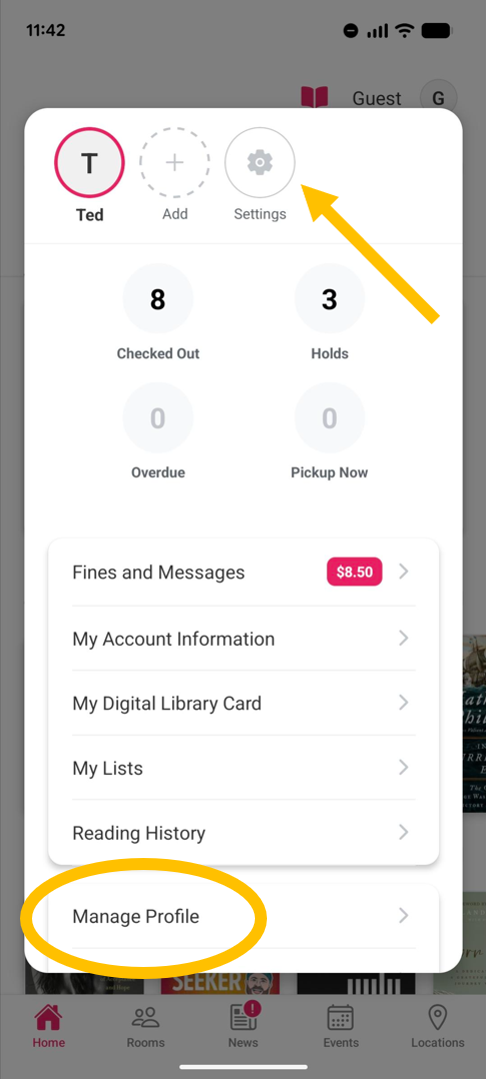
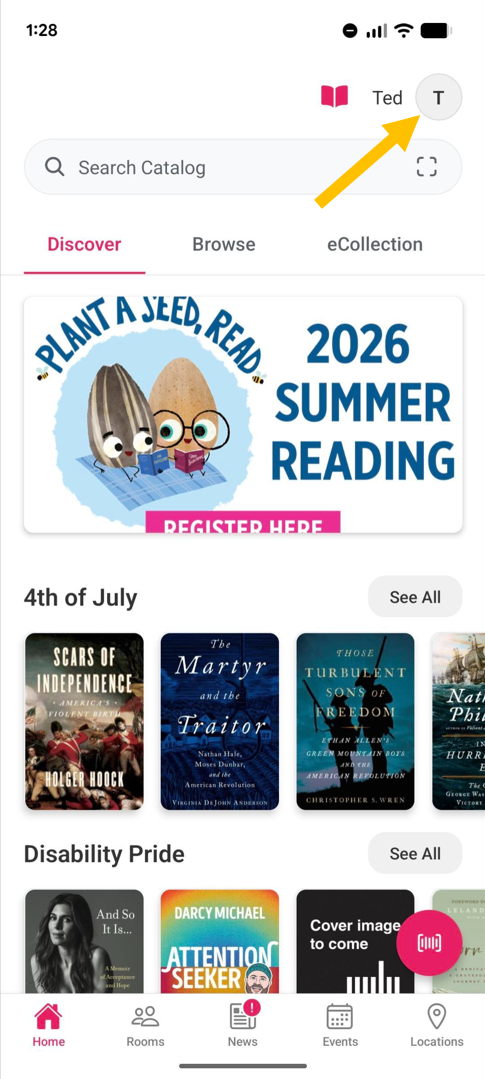
Tap on Your Account Profile Icon to Open Your Account Panel
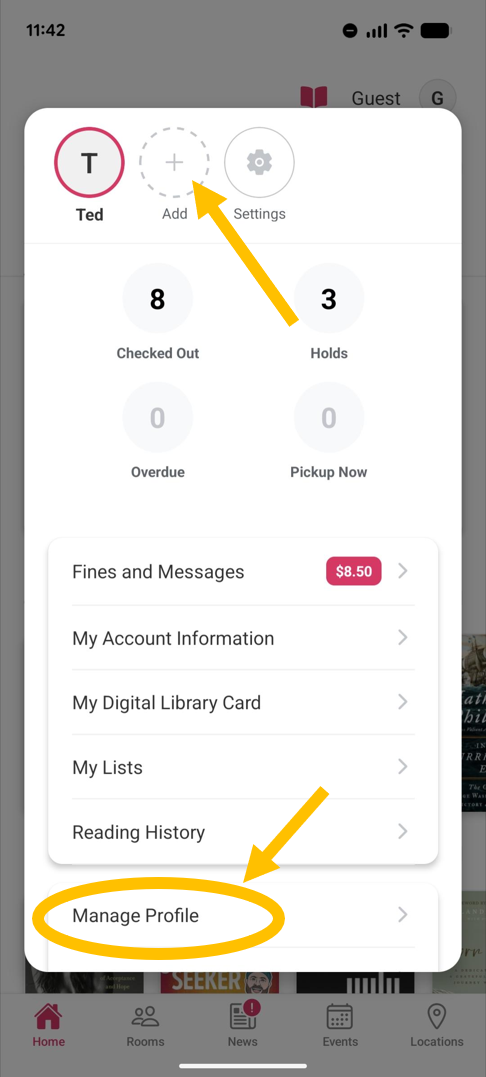
- Use the gear icon or the Manage Profile button to go to the Account Management screen.
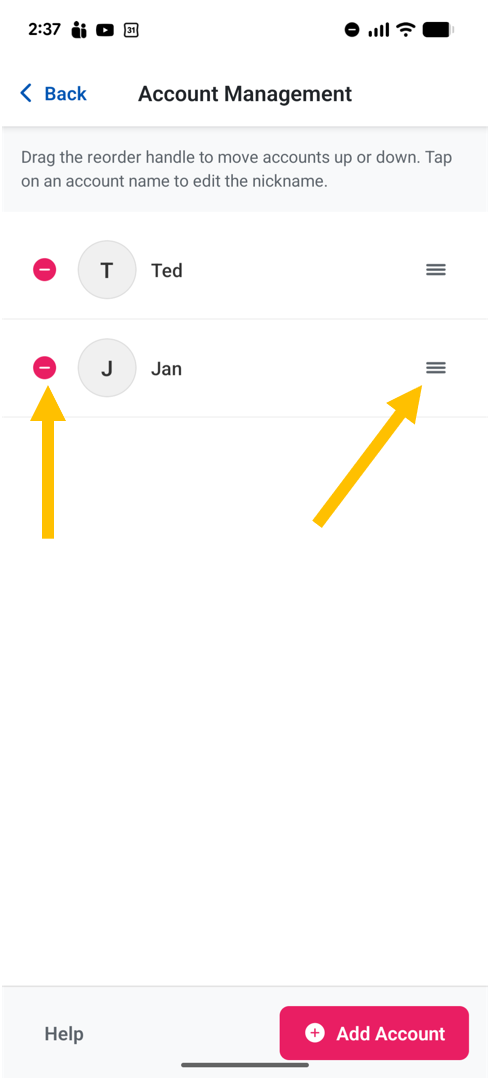
In the Account Management screen
- Use the delete icon to the left of each Library Account to remove it from the app.
Clear App Cache
If the App is frozen and you can't get past the App startup screen, please try this instead:
If using an Apple / iOS device:
To delete saved passwords, app data, and cache on an iOS device, go to Settings > Passwords to access saved passwords and delete them individually, then navigate to Settings > General > iPhone Storage to manage individual app data and clear caches by either offloading or deleting the app completely depending on user needs.
If using an Android device:
On the device (not in the Library App itself),
- Open Settings
- Select Apps or Applications
- Find the Arlington Public Library app
- Select Storage & Cache
- Select Clear cache to delete all cached data for the app
- To clear all app data, select Clear Storage
- Tap OK to confirm
Then try opening the Library App again and see if you can get past the startup screen. If that works, you will need to add your account back to the Library App and re-enter your card number and password / PIN.
Delete Data from iCloud
Sometimes uninstalling the app does not completely clear the saved data.
Try again following options 2 and 3 from this link:
https://www.insanelymac.com/blog/clear-app-data-on-iphone/
Option 2: Delete App Data in iPhone Settings
If an app doesn’t offer built-in options to clear cache or stored data, iPhone settings provide another way to manage it. Yes, by deleting it.
- Open Settings and go to General > iPhone Storage.
- Browse the list and select the app whose data you want to clear.
- Tap Delete App to remove the app and all its associated data.
- Reinstall the app from the App Store if needed, starting fresh without the old data.
Note. You may have noticed the Offload App button—it does the opposite of what you need if you want to clear app data. Instead of removing stored files, it deletes the app but keeps all its data on your iPhone. When you reinstall the app, everything comes back as if nothing changed. This works well if you need to free up space temporarily without losing important files, but if you want to reset the app and remove cached data, it won’t get the job done.
Option 3: Clear App Data from iCloud
If an app stores data in iCloud, removing it from your iPhone won’t necessarily delete everything. Some apps sync files, backups, and settings across devices, and keep them in iCloud even after you delete the app itself. If you want to remove app data completely, you’ll need to clear it from iCloud as well
- Open Settings and tap your name at the top.
- Go to iCloud.
- Then tap Storage or Manage Storage (the exact option depends on your iOS version).
- Scroll down and select the app storing data in iCloud.
- Tap Delete Data From iCloud, then confirm.
Add Your Account to the Library App
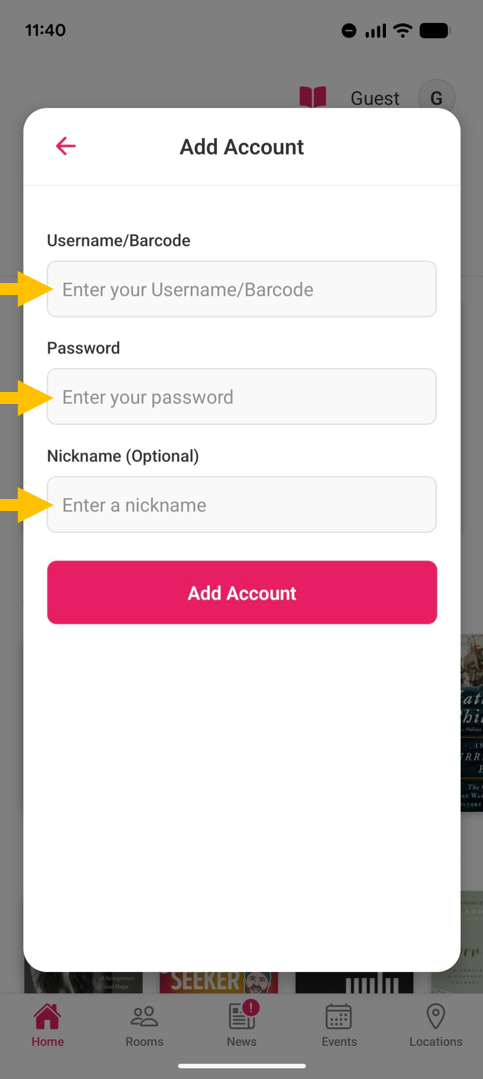
Login: Add Your Library Account
- Enter your library card number/username.
- Enter you Library Account password / PIN.
- Choose a short nickname for your Library Account (this is just for the app - try initials or abbreviations).
- Tap Add Account.
PRO TIP: see this section on how to Avoid Typos When Logging In
If you already have other accounts saved in the App or you do not see the JOIN OR LOGIN button, see this section on how to Add Multiple Accounts
Avoid Typos When Logging In
Tip: Use a Note Taking App
One of the most common causes for login errors is mistyping your username or card number or password / PIN. This can cause an authentication error even when you know you have the correct login information.
If you have a note taking app on your device, we suggest typing your login information into the notes app first.
Confirm the login information you typed in the notes app matches exactly with the login information you used to verify your account in the steps above.
Then copy and paste your login information from the notes app to the "Add Account" form in the Library App.
Add Multiple Library Accounts
Two Ways to Add More Library Cards to Your App
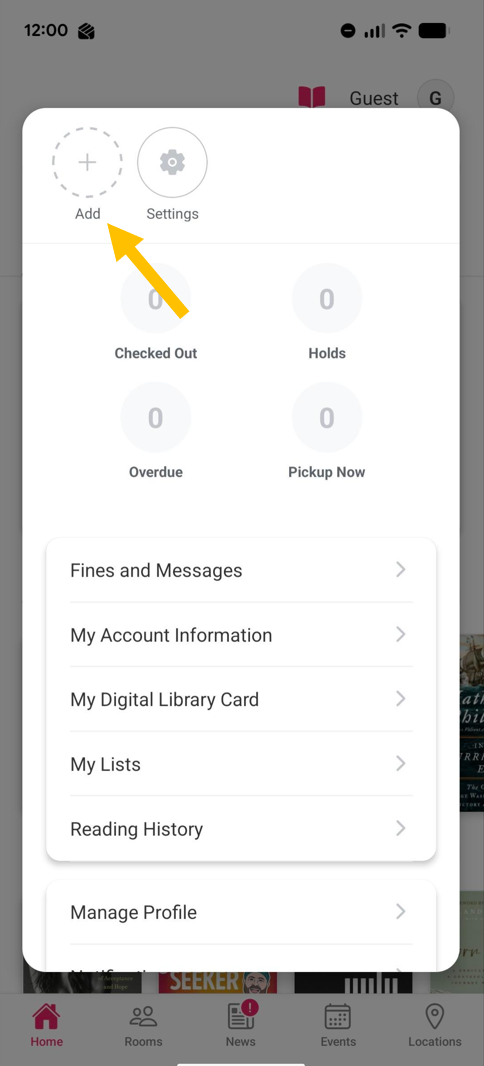
- Tap on your account icon to open your account panel.
- Use the + symbol to open the Add Library Account screen, and log in with additional accounts.
- Use the Manage Profile button to add, move or delete the Library Accounts managed on your app.
For more detailed information on using the Library App, please see this guide: How to Use the Library App.
Use the Library App Feedback Form to send us questions and comments or to report issues with the Library App.
The Library App is a collaboration between the Arlington Public Library and Arlington’s Department of Technology Services.